





(1) Introduction
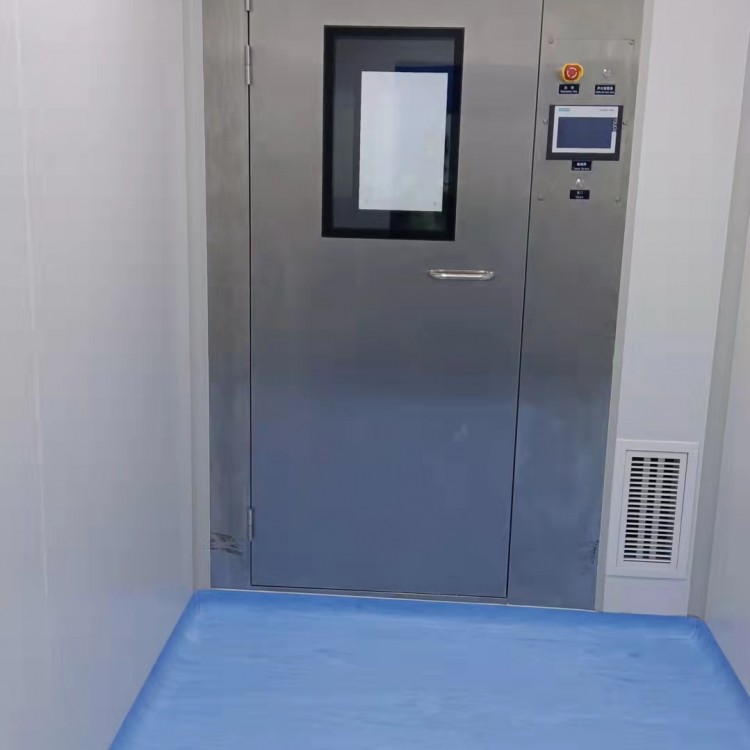
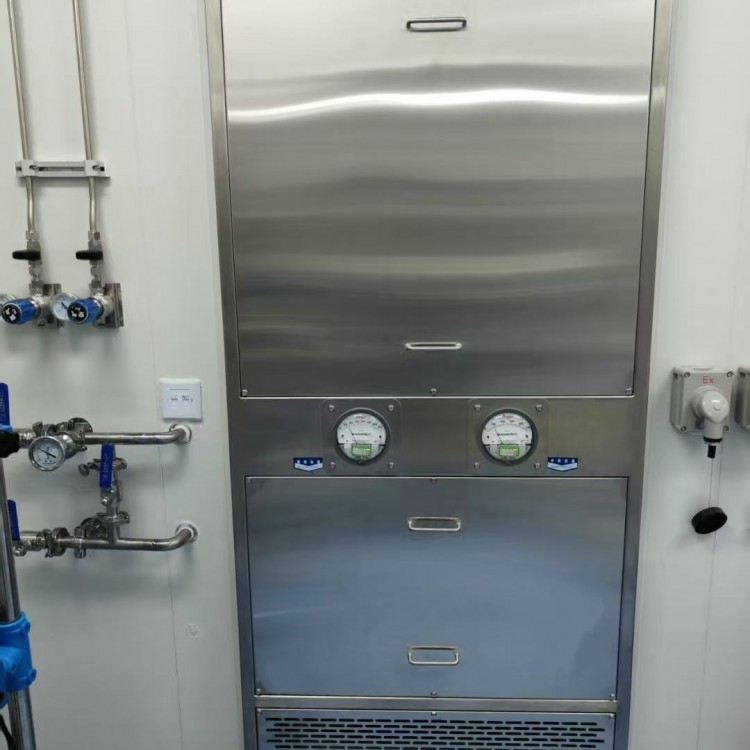
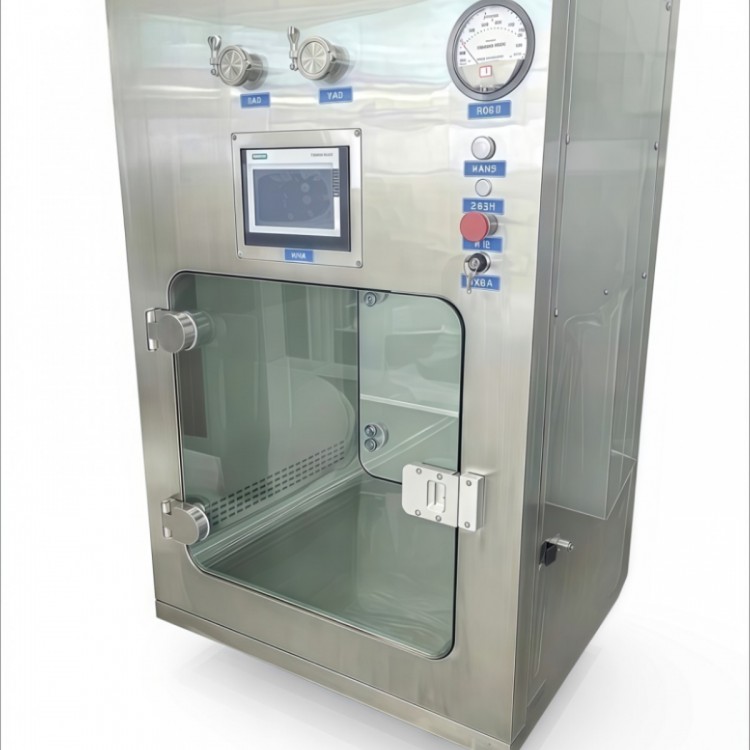
This system is compatible with equipment such as the JC-610Z, JC-601Z, airborne bacteria, wind speed, differential pressure, temperature and humidity, alarm lights, etc. (Details may vary according to actual conditions).
Connect relevant devices via Modbus RTU and TCP communication methods. Use the Config King supervisory control and data acquisition (SCADA) software to link, control, and monitor the data of the connected devices.
(II) Configuration King Interface
1. Configuration King Shortcut
Double-click the Config King shortcut to access the Config King interface.

2. Configuration King Engineering Management Interface
Open the shortcut, and you will enter the KingView engineering management interface (as shown in Figure 1.5).
Figure 1 shows the software search function; click to find or replace projects.
Place the file in the root directory of Drive D.
The two spots in the image are operational features; a single click will take you to this project.
In the image, the three locations marked are the current project sites. The small red flags indicate the current project sites.
Double-clicking the current project will enter the development function, preventing access to the normal monitoring system.

(3) Online Suspended Particle Monitoring System Interface and Features
1. Operating System
In addition to the above methods, you can also double-click the desktop to run the system, and then access the relevant projects (as shown in Figure 1.6).

2. Access the operating system
Click to display this screen (as shown in Figure 1.7), select the corresponding username, enter the password, and click "OK" to log into the operating system.

3. Operational Interface
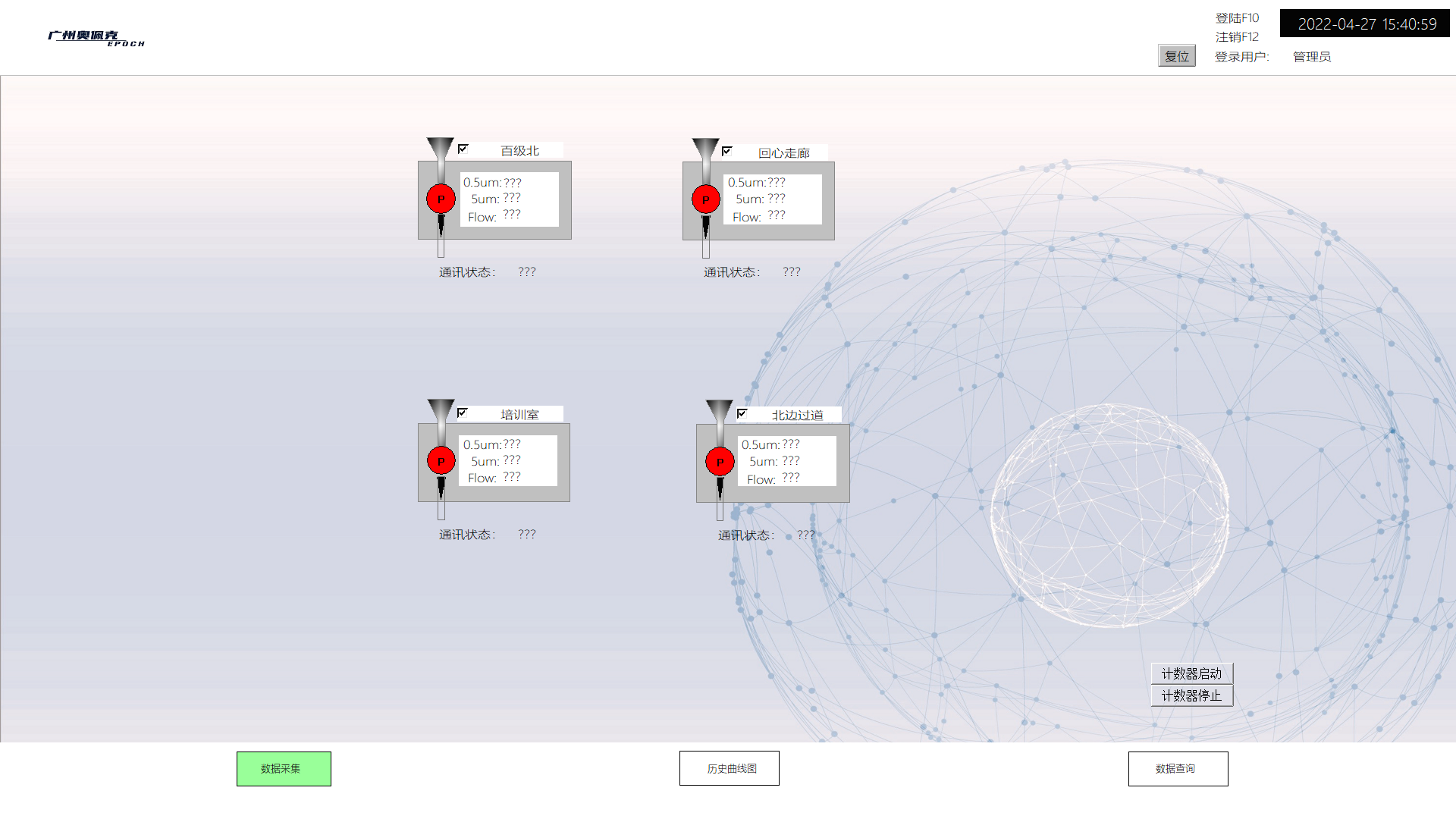
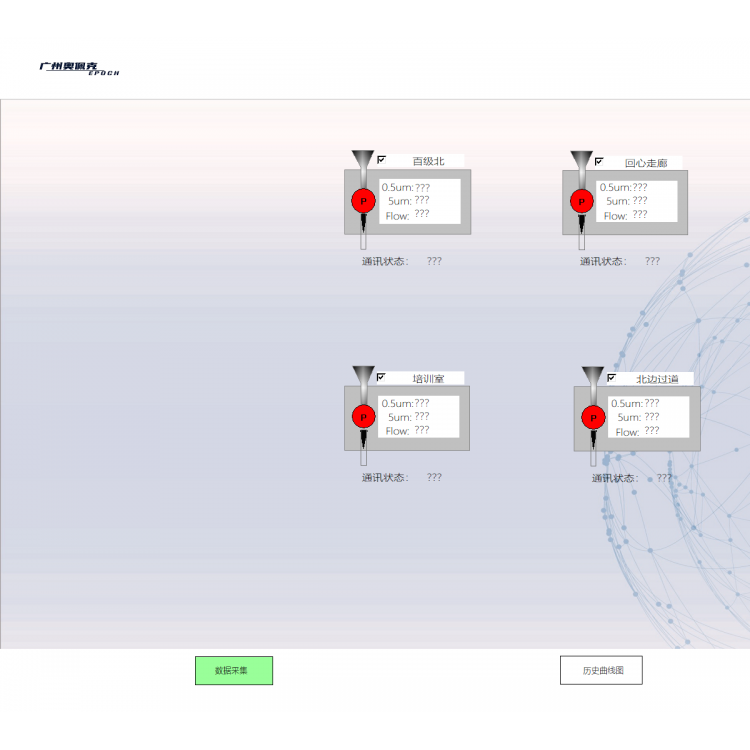
Open it to reveal the operation interface.

This system includes: (1) control of start/stop for devices like counters and airborne bacteria, as well as alarm reset.
(2) Display of data such as wind speed, particle count, and the number of liters of airborne bacteria extracted.
(3) Particle early warning, alarm, and flow value settings.
(4) Particle early warning alarm, over-limit alarm, flow alarm, communication alarm.
(5) Particle Curve Inquiry, Floating Bacteria Data Inquiry, Particle Count Inquiry, Alarm Data Inquiry, Operational Data Inquiry.
6) User Tiered Permissions (Administrator, Reviewer, Operator): Administrators can add and delete users, and change passwords.
(7) Search data is printable and can be directly exported in PDF document format.
4. Operation Instructions
(1) Exit Monitoring System
Click the "OPEC" icon in the upper left corner to exit the monitoring system.

(2) Login and Logout Procedures for Users
Click on Log In and Log Out (Figure 2.0) to log in or log out of related users. After logging in with an admin account, click on the logged-in username to add or delete users, or change user passwords.

(3) Add, Edit, Delete Users
Click on the "Username" to enter this screen (Figure 2.1). Right-click on the username to add, edit, or delete related users. If adding a new user, refer to the 3 provided users for setup (Figure 2.2).

(4) Equipment control for start and stop

(5) Equipment indicator lights
The box indicates the equipment status lights, red for stopped, green for running.

(6) Modify related equipment names
Click on the device name (Figure 2.5) to modify the device name.

(7) Alarm Reset, Communication Reset
When an abnormal alarm occurs, an alarm feedback will appear on the screen. Click the relevant button in Figure (Figure 2.6) to interact with the alarm text.
Reset alarm information, click the alarm light once to silence, the beep will stop after a few seconds.

(8) Alarm Text
The alarm text (Figure 2.7) will display communication alarms, with particle early warning alarms causing the text to turn red on the 0.5 and 5.0 channels.

(9) Navigate to the relevant screen
Click on the corresponding button (Figure 2.8) to access related screens such as historical curve queries, data queries, and data collection.

(10) Parameter Setting Screen
Parameter Setting Screen (Fig. 2.9), select the cleanliness level, click on the value box of the relevant equipment, click the "Parameters Confirm" button, and you can change the relevant parameter values.

(11) Historical Curve Inquiry Screen
Particle Curve Query Screen (Fig. 3.0), click the Parameter Settings button (Fig. 3.1), and you can adjust the X-Y axis settings to select the corresponding particle data curve.
Click the Print button to select printing or exporting as a PDF document. The 0.5 and 5.0 curve queries are the same.


(13) Particle Data Query
Click the "Particle Data Query" button below to display the particle data query screen. In the box, select the desired time period, and how to click below the end time.
"Counter Data Query" button, the corresponding data will appear on the left side of the screen. You can select a single counter individually or view all counter data.
Click "Print" to print directly or save as a PDF document.
When selecting a time, click once in the box to confirm; any selection outside the box is invalid.
(14) Alarm Data Inquiry
Click on the "Alarm Data Query" button below to access the Alarm Data Query interface (as shown in Figure 3.7). In the box, select the desired time period, with the end time below
The "Alarm Data Query" button is square-shaped; related data will appear in the table on the left. After querying, you can also click the "Print" button to select a printer and print directly.
Or print it as a PDF document. After selecting the time, click once in the box to confirm; clicking out of the box will invalidate the selection.

(15) Operation Data Inquiry
Click the "Operation Data Query" button below, and the operation data query interface will appear. In the box, select the desired time period, and below the end date, choose the "Operation Count" option.
Click the "Search" button, and the related data will appear in the table on the left. After searching, you can also click the "Print" button to choose between printing directly to a printer or saving as a PDF.
Document. After selecting the time, click once in the box to confirm; any clicks outside the box will be invalid.