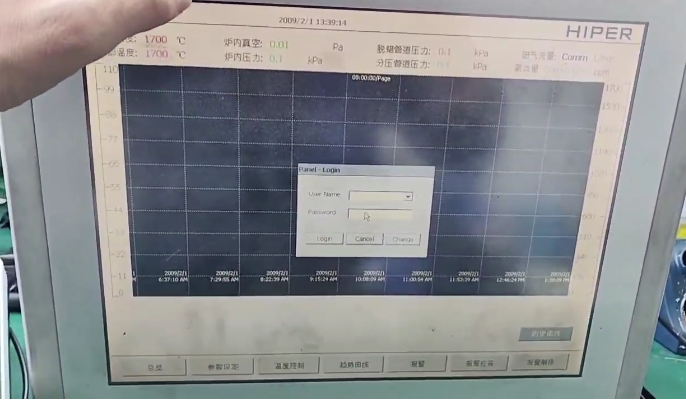
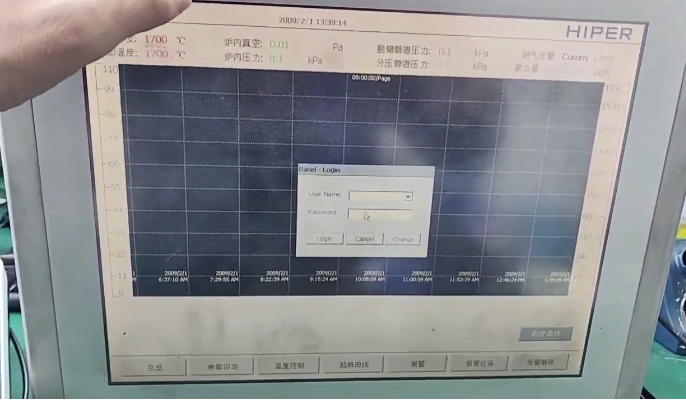
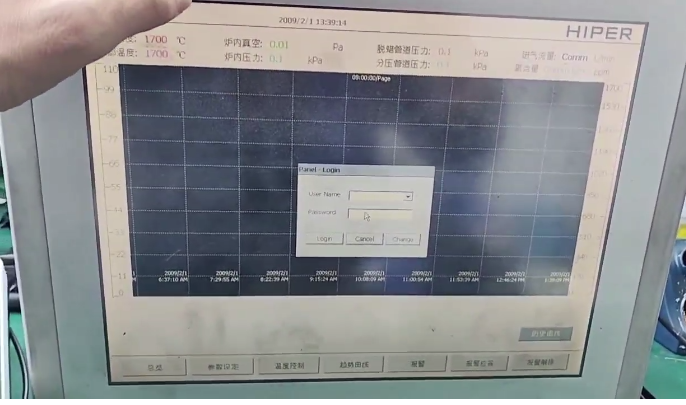
For the repair issue you mentioned regarding the Brainchild Touchscreen 15 HMI 2011010 SN, here is a step-by-step solution and recommendation:
1. Preliminary diagnosis
Symptom Confirmation
Touch unresponsive/drift
Screen display abnormalities (fading screen, black screen, stripes)
Power or communication failure
Physical damage (cracked screen, water damage, etc.)
Basic Inspection
Restart the device and observe if it recovers.
Check the power adapter and cable connections for proper functionality.
Attempt to restore factory settings (if backup parameters are available).
2. Common Fault Solutions
# A. Touch Failure
Calibrate Touch Screen
Enter the device settings menu and perform the touch calibration (refer to the manual for the operation path).
* (Some Brainchild HMIs require a long press on a specific key to enter calibration mode)*
Clean Screen
Wipe the surface with alcohol swabs to remove oil stains or static interference.
Inspect wire harness
If the equipment is disassemblable, check for loose or oxidized touch screen wiring (power must be off during operation).
B. Display Anomaly
Driver Board/Backlight Failure
If the screen flickers or the backlight does not illuminate, it may be necessary to replace the driver board or the LED backlight strip.
LCD screen damaged
When experiencing a black screen or bright lines, it may be necessary to replace the LCD module (device inspection required).
# C. Communication or System Failure
Firmware upgrade/reinstallation
Download the corresponding firmware model from Brainchild, and flash it via USB or SD card.
Check communication ports
Test for RS232/485 port damage, replace communication cable for testing.
3. Spare Parts & Technical Support
Model Confirmation
Ensure the spare parts match 2011010 SN exactly (contact Brainchild or the agent for verification).
Alternative Solution
If the original screen is discontinued, confirm the compatible replacement model (such as consistent in size, interface, and protocol).
4. Maintenance Recommendations
Self-maintenance risk
High integration of LCD screens and touch modules; inexperienced operation may increase damage.
Recommended Steps
Contact Brainchild (for SN code support).
2. Seek industrial HMI repair service providers (please specify the model and the symptoms of the failure).
3. If replacing the entire unit, backup the original program and data.
5. Emergency Temporary Solution
External USB mouse operation (supported by some HMIs).
Temporarily controlled via remote monitoring software (such as Brainchild's dedicated tool).
Attention: Always disconnect the power source before maintenance and perform anti-static operations. If the equipment is used on a critical production line, it is recommended to contact the service provider first. For further assistance, please provide specific fault phenomena or test results.

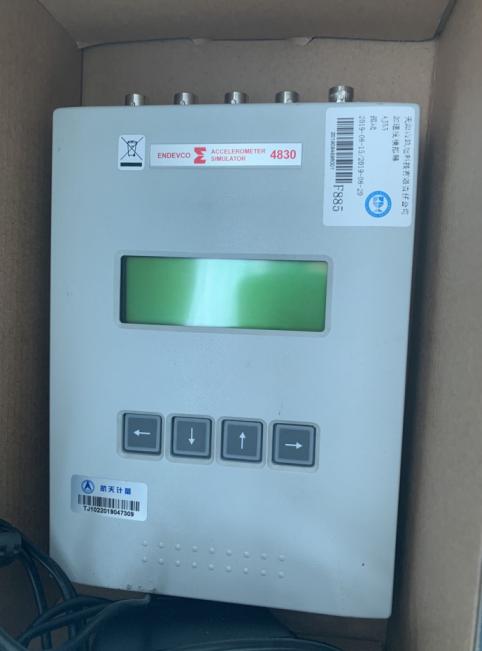 ENDEVCO Vibration Simulator 4830 Maintenance
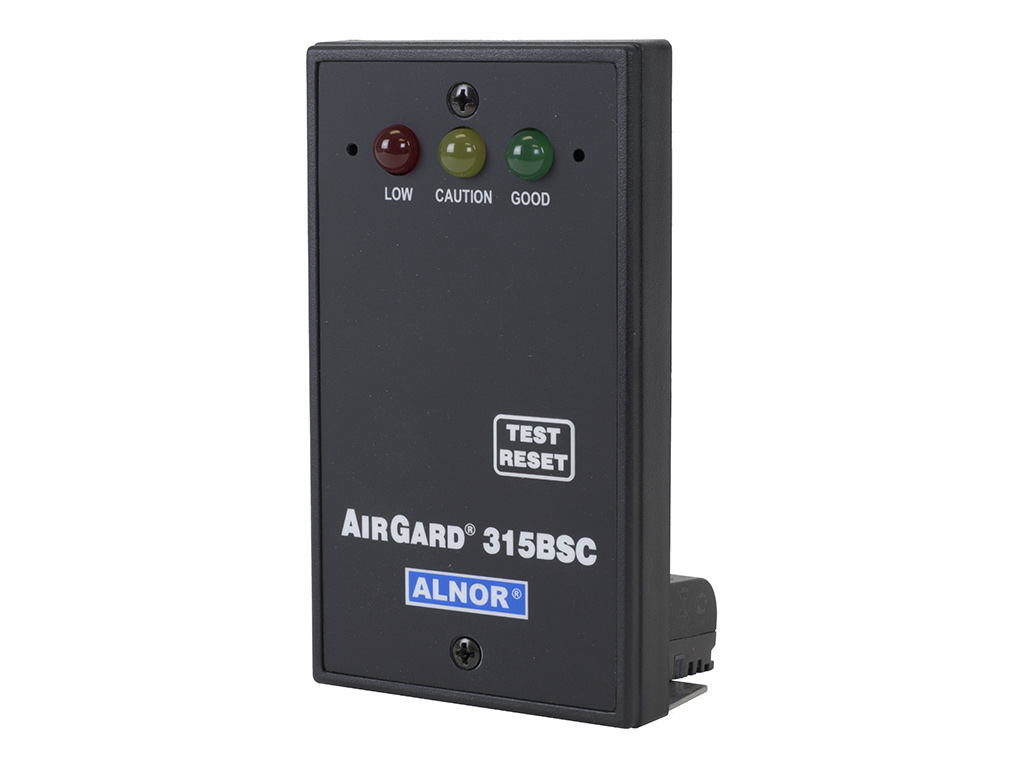 ALNOR Instruments Wind Speed Meter Repair
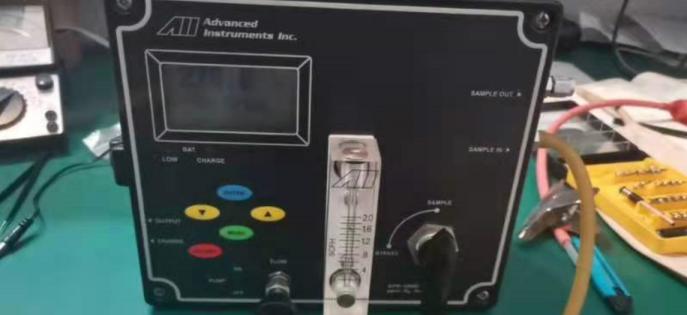 Analyzer GPR-1200 Maintenance

 Repair BALDOR Motor 0105300033-000010
 Repair Newark Digital Oscilloscope 54AH4789
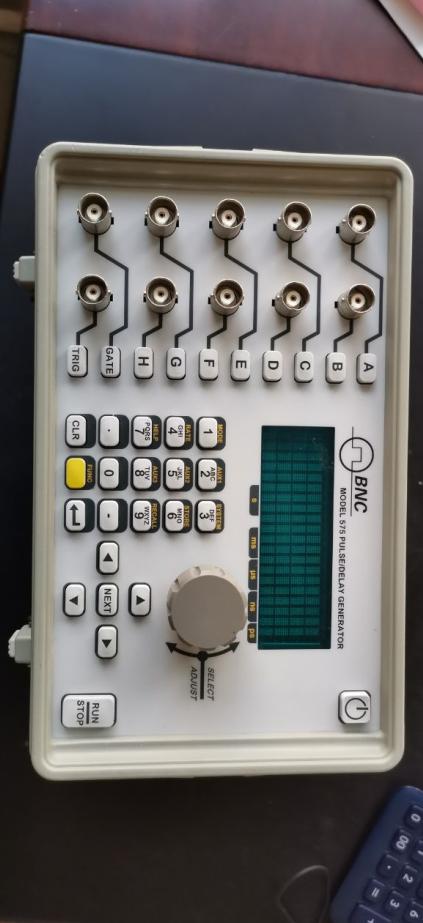 BNC Delay Signal Generator 575-8C Repair