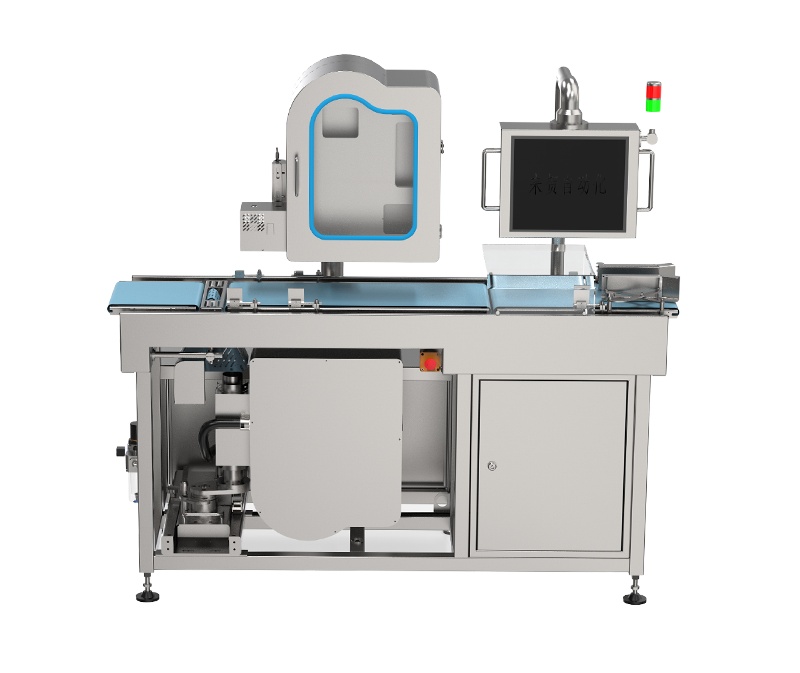
A labeling printer is a common piece of machinery often used for printing and labeling products. By adjusting the printing speed and clarity of a labeling printer, the print quality and work efficiency can be improved. Below, the labeling printer manufacturer will introduce how to adjust the printing speed and clarity of a labeling printer.
Firstly, to adjust the printing speed and clarity of label applicators, it's necessary to understand the relevant parameter settings. Typically, the settings of label applicators can be adjusted through the machine's control panel, computer software, or other related devices. Different brands and models of label applicators may have varying setup methods and parameter options, so the following will provide an introduction based on general circumstances.
Next, adjust the printing speed. The printing speed directly impacts the efficiency of the label printing machine. If the speed is too fast, it may result in blurry prints or inaccurate labeling. Conversely, if the speed is too slow, it will waste time and resources. Therefore, based on actual needs, the printing speed can be appropriately adjusted.
We have adjusted the printing mode of the label applicator. Generally, label applicators come with various printing modes, such as standard, high-speed, and other custom modes. By selecting different printing modes, you can alter the printing speed and quality. Under the premise of ensuring print quality, you can try the high-speed mode to enhance the printing speed.
2. Adjust the label printer's print resolution. Print resolution refers to the number of pixels the label printer can print per unit area. Generally, the higher the print resolution of a label printer, the better the print quality, although the printing speed will also slow down accordingly. Choose the appropriate print resolution based on your needs, balancing between high speed and high quality.
Thirdly, adjust the print clarity. Print clarity refers to the level of sharpness and detail of the text, images, and other content printed by the label printer. High clarity prints are typically clearer, sharper, and easier to read. Here are several methods to adjust print clarity.
Adjust the print head position of the label printing machine. The print head is a critical component of the label printing machine, directly affecting print quality. You can attempt to adjust the print head's position to ensure it maintains appropriate contact with the label's surface.
Ensure the quality of ink or ribbon used in label printers is high. Ink or ribbon is a material used in label printers, which significantly affects print quality. Choosing high-quality ink or ribbon can enhance print clarity. Additionally, replace ink or ribbon promptly to avoid using expired or worn-out supplies.
3. Calibration of the Label Printer. Some label printers come with automatic calibration features that can enhance print clarity by calibrating the printer. Follow the printer's user manual for instructions and calibrate according to the specific situation.
4. Clean the printing and labeling machine. Over time, printing and labeling machines may accumulate dust or other debris, which can affect print quality to varying degrees. Regularly cleaning the printer head, conveyor belt, roller, and other critical components can enhance print clarity.
Later, adjusting the print speed and clarity of the labeling machine requires actual operation and fine-tuning based on specific conditions. Before adjusting the parameters, it's advisable to conduct experiments and tests. Through continuous attempts and adjustments, find the optimal print speed and clarity. At the same time, be mindful to protect the labeling machine, avoiding improper operation or malfunctions during use.