




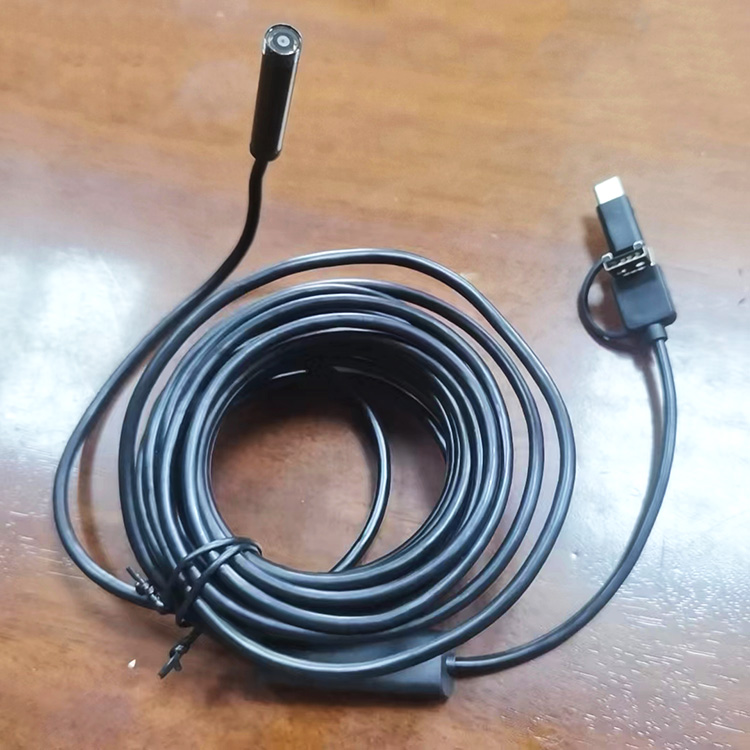
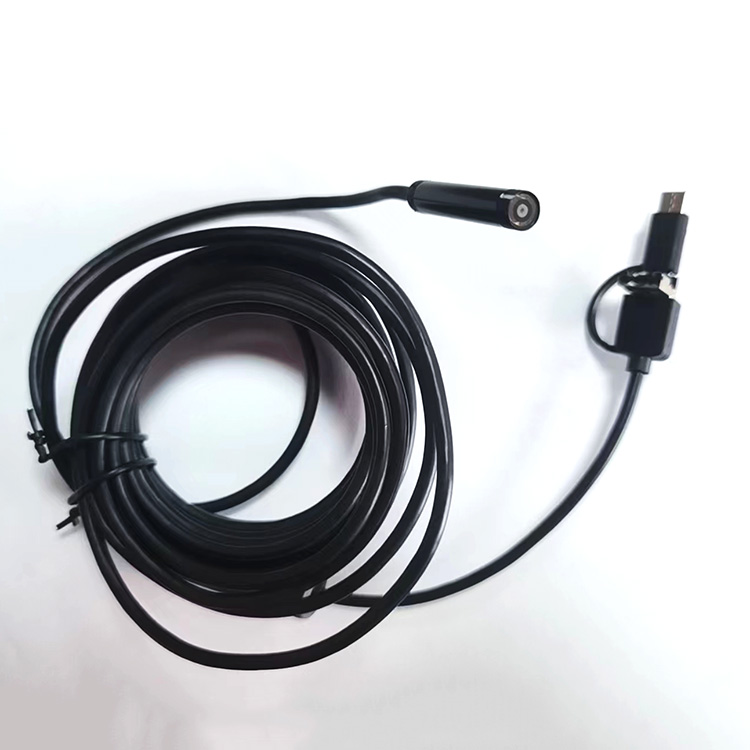
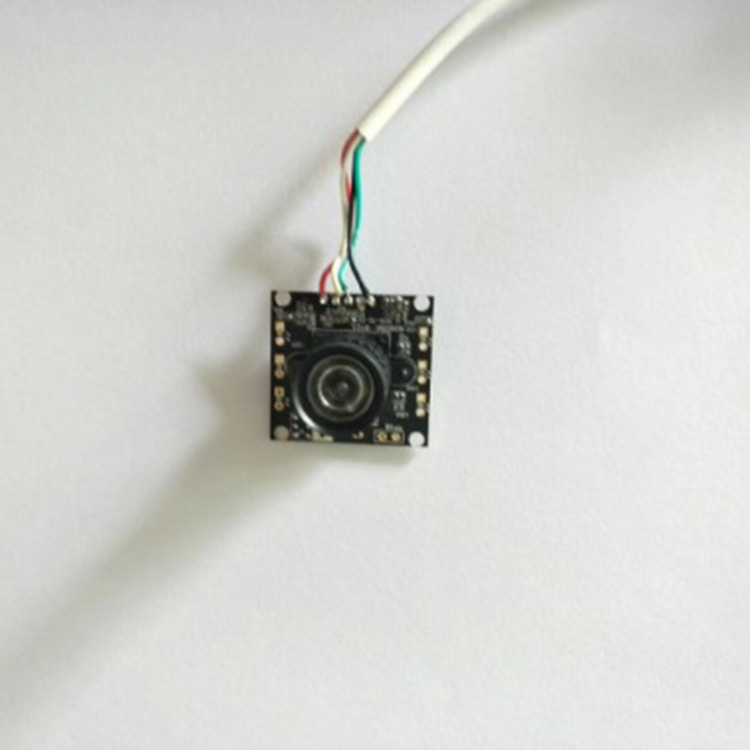
WiFi High-Definition Underwater Fish Finder
User Manual

Product Specifications:
View: 220°
High-quality focus range: 10cm - 200cm
Controllable Light Infrared Lamp
Ultra-Wide Aperture F2.0
Waterproof rating IP67/IP68
Transmission distance: 5-15 meters
High capacity battery, 4000-8000mAh (full charge for nearly 8-15 hours)
Built-in power bank feature, can charge the phone while live streaming
Supports live streaming mode, view images and browse the internet simultaneously
Supports system 10S/Android
How does it operate on a smartphone?
How to Turn On/Off the Device
Press and hold for about 3 seconds to turn on, press and hold again to turn off.
Briefly press the fish finder's infrared light to turn it on, and the battery level will be displayed simultaneously.
How to charge the device?
To charge the device, a power supply of 5V 1A or 5V 500mA is required. It can be fully charged in approximately 8-15 hours. The four blue power indicator lights will be on during charging. When all blue lights are on, it indicates a full charge, which typically takes about 2-4 hours.
Structure Introduction
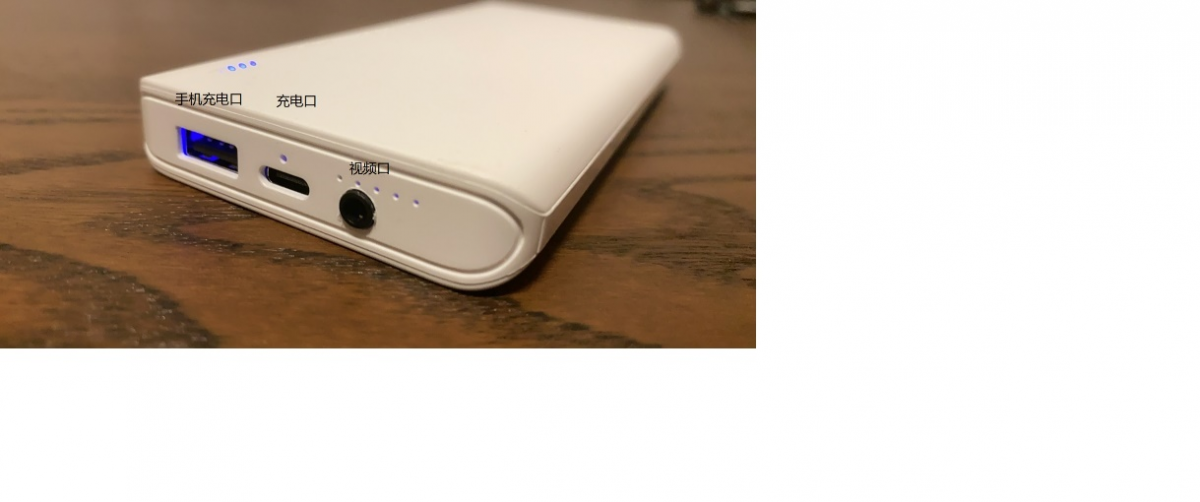
Install mobile app
Search "XRCAM" in the app store.
Usage Instructions
Standard Mode
1. After turning on the phone, go to Settings, find the WIFI signal name ZHYZ-000-XXXXX, and connect without entering a password. As shown below: 1-2
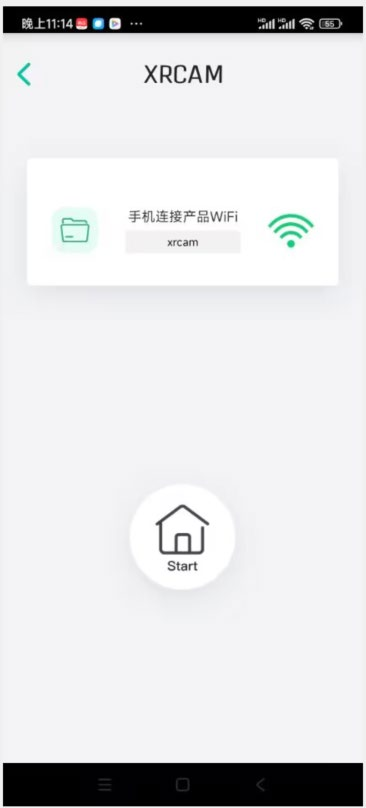
As shown below: 3-4, click on the endoscope

As shown below: 5, click Start, turns green


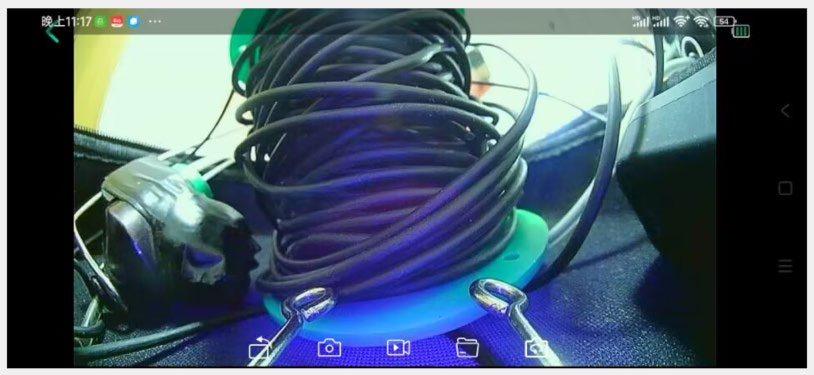
As shown below: 6, the software has successfully displayed the image.
Live Streaming Mode
After a successful connection, you can start setting up the live broadcast mode, follow these steps:
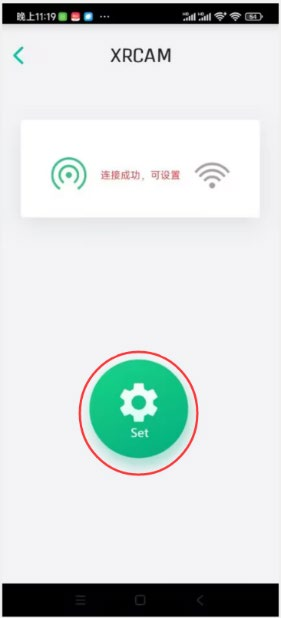
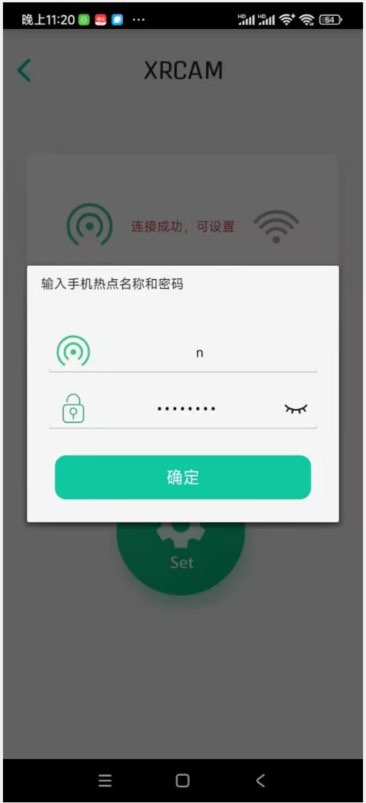
Click "Figure 1" for live mode, which will pop up "Figure 2" menu. Click the "Set" icon in the menu, select hotspots and enter the password (Figure 2). The device will turn blue, and if the password is correct, P2P remote access will be enabled.
If an incorrect password is entered, rebind is required (hold down the reset button for 4 seconds while the device is turned on and then reconnect).
*The device must be set with a password (Figure 3) upon first opening to view the video feed (once the password is set, it will be impossible to access or add this device without it).
After opening the camera view, the image shown in Figure 4 can be seen, with the specific button definitions listed in the following table.
As shown below: 1-2
Click Confirm as shown below: 3. Enter the phone number, hotspot name, and password. Click Confirm. The device's green light will blink quickly to enter live streaming mode. Note: After the live streaming settings are successfully set, the device will enter live streaming mode every time it is turned on. If the device is not connected to the set hotspot, it will enter normal mode after 10 seconds.
Upon opening the camera view, Figure 4 is visible.
2. After connecting to the Wi-Fi with the corresponding name, return to your phone's home screen, open the installed APP, and the screen will display successfully.
1. Return; 2. Rotate; 3. Photocopy; 4. Videotape; 5. File-0
